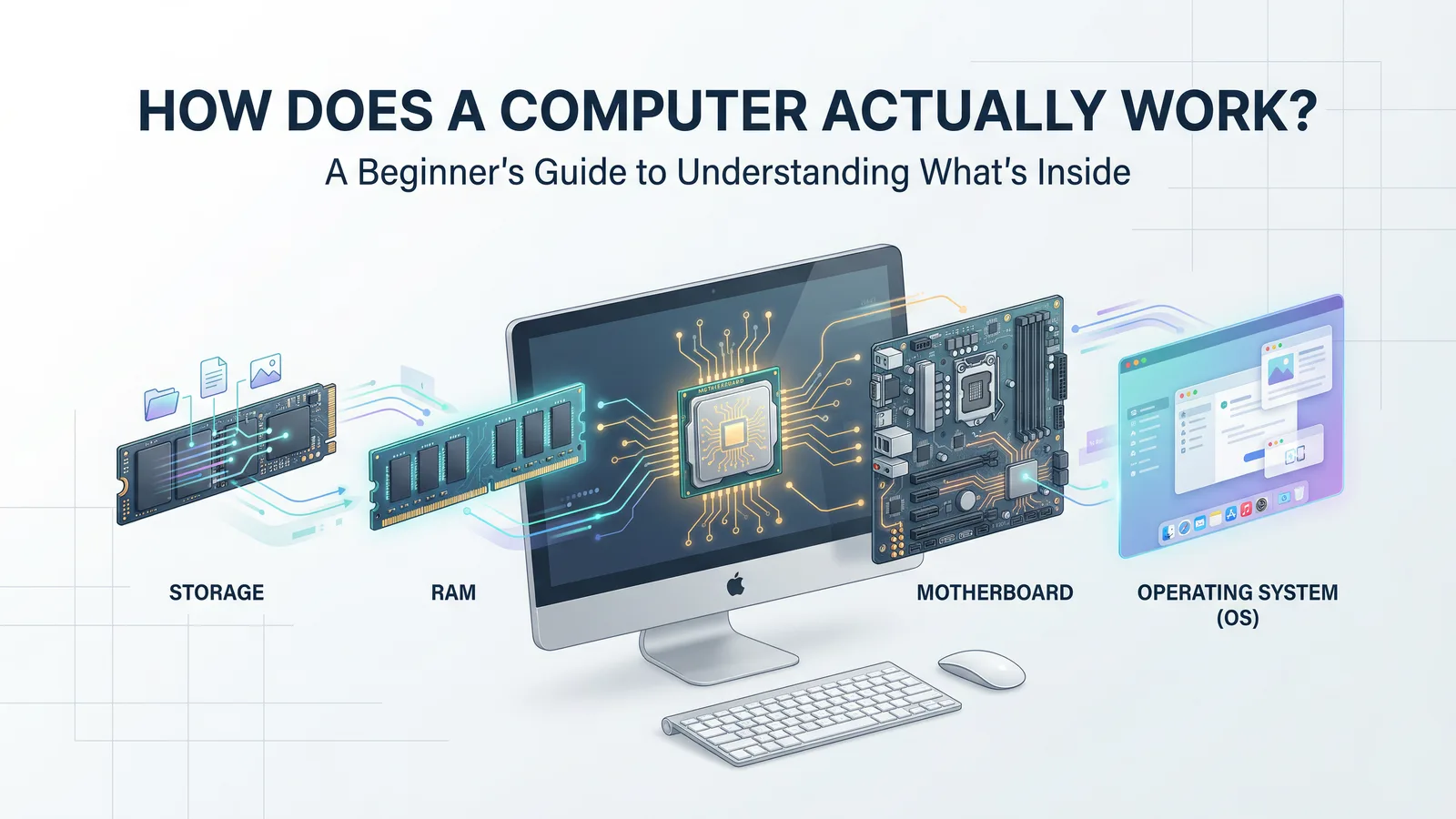
Have you ever wondered what happens when you press the power button on your computer?
Within seconds, your screen lights up. You open a browser, type a website address, and a webpage appears. It feels almost instant.
But inside your computer, millions of operations are happening every second. Different components communicate, move data, and follow instructions to make everything appear on your screen.
So, how does all of this actually happen?
Let’s start with something simple.
A computer is a machine that takes information, follows instructions, and produces results.
Think about a basic calculator. You enter two numbers, press the addition button, and it gives you the answer.
A computer works in a similar way, but on a much larger scale. It can run applications, play videos, store photographs, connect to the internet, and handle many different tasks.
To understand how it does all this, let’s look at five essential parts of a computer system.
The Five Main Parts That Make a Computer Work
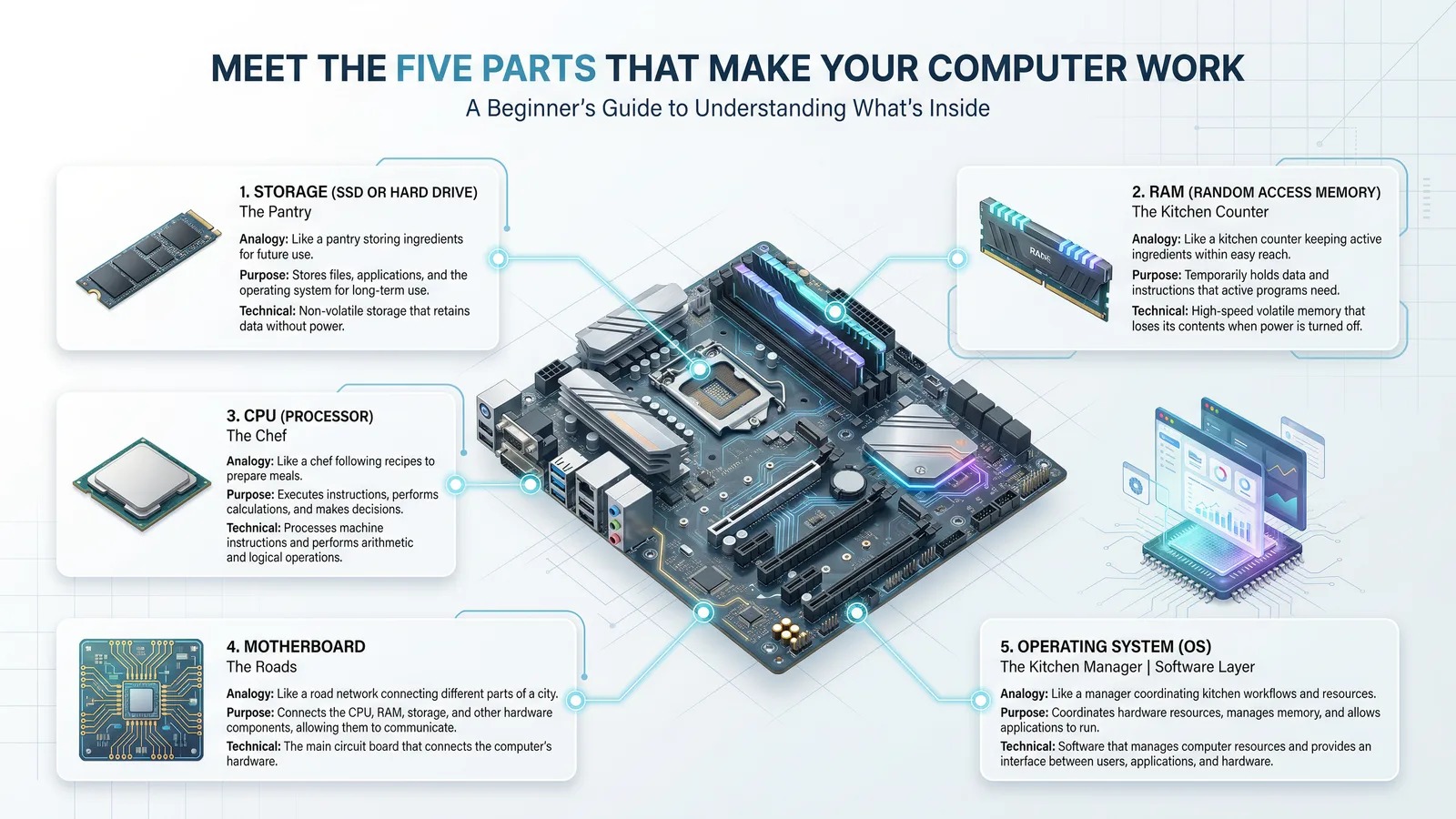
1. Storage (SSD or Hard Drive): Where Everything Lives Long-Term
When you shut down your laptop at night and turn it back on the next morning, your photos, documents, and applications are still there.
That’s because of storage, usually an SSD in modern laptops.
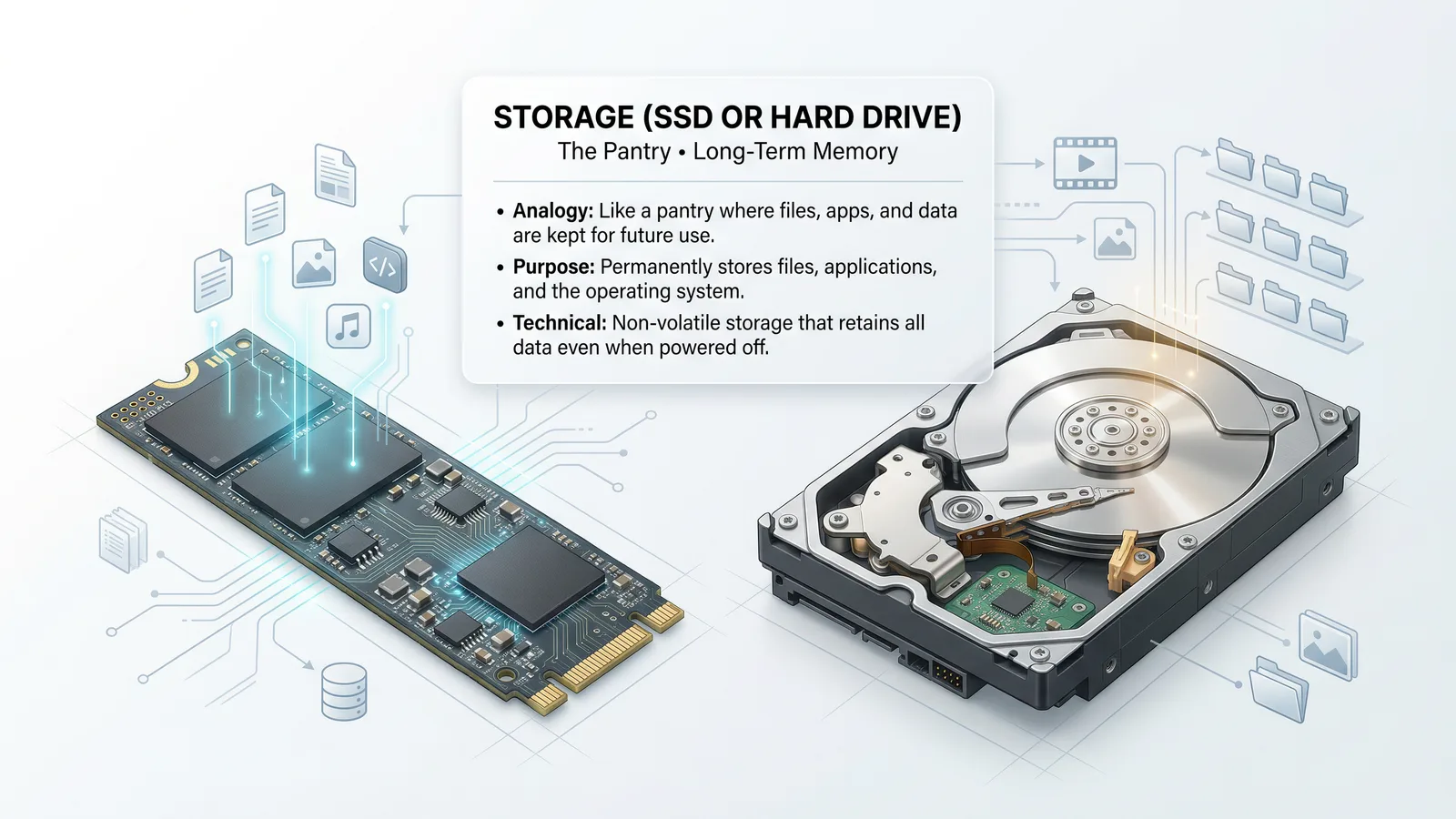
Think of storage like a kitchen pantry. It holds everything long-term, even when nobody is using it.
Technically, an SSD uses flash memory to store information in electronic memory cells. These cells retain their information even when the power is turned off.
Your computer needs storage to keep its operating system, applications, and personal files available for future use.
The trade-off? Storage is generally slower to access than RAM.
2. RAM (Memory): The Fast, Temporary Workspace
If storage is relatively slow, how does your computer feel so fast when you switch between browser tabs or type in a document?
It uses RAM (Random Access Memory).
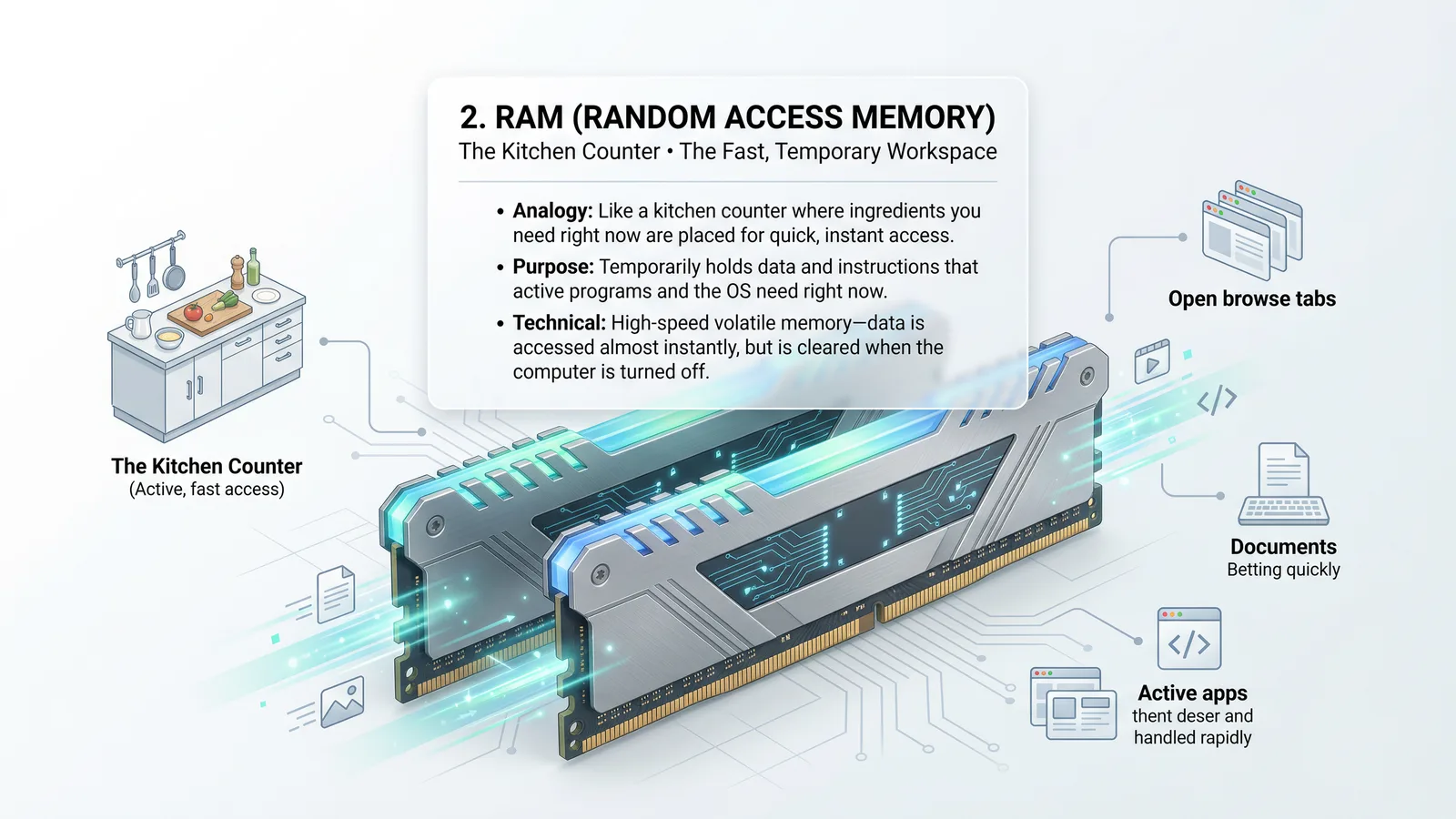
If storage is the pantry, RAM is the kitchen counter. You bring out the ingredients you need right now and place them somewhere you can access quickly.
Technically, RAM is high-speed electronic memory that temporarily holds data and instructions that active programs need.
Unlike storage, RAM is volatile memory. This means its contents are lost when the computer loses power.
Your computer needs RAM because it provides a fast workspace for applications and the operating system.
3. The CPU (Processor): The Part That Does the Actual Work
Having files in storage and active data in RAM doesn’t do much on its own. Something still has to perform the actual work.
That’s the job of the CPU (Central Processing Unit).
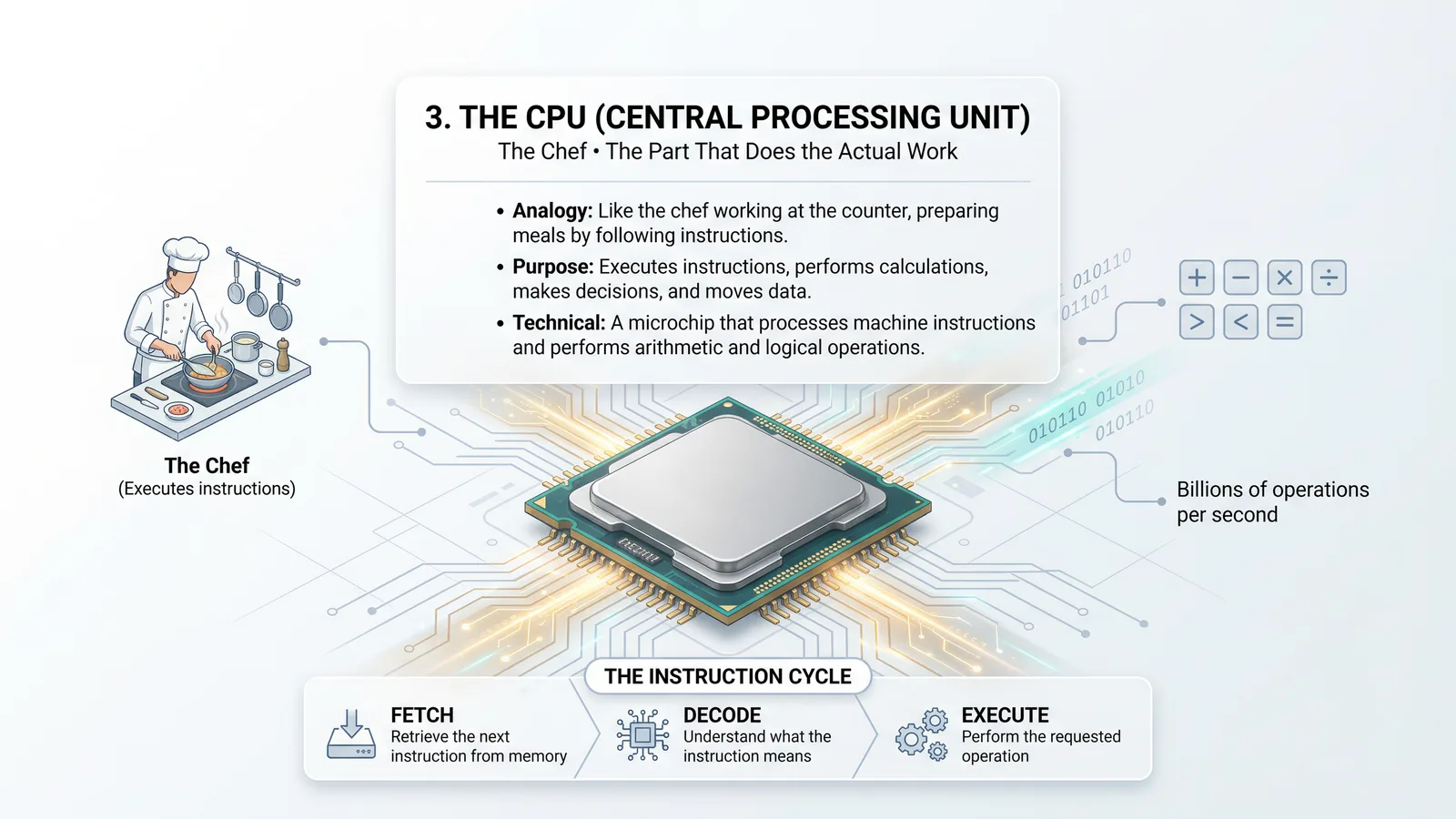
In our kitchen analogy, the CPU is the chef working at the counter.
Technically, the CPU is a microchip designed to execute machine instructions and perform arithmetic and logical operations.
For example, it can add numbers, compare values, make decisions, and move data.
To execute instructions, the CPU repeatedly follows a fundamental process known as the instruction cycle:
- Fetch: Retrieve the next instruction.
- Decode: Understand what the instruction means.
- Execute: Perform the requested operation.
This process happens incredibly quickly, allowing your computer to execute enormous numbers of instructions every second.
4. The Motherboard: The Roads Connecting Everything
Storage, RAM, and the CPU are separate physical components. For them to work together, they need a way to communicate.
That’s where the Motherboard comes in.
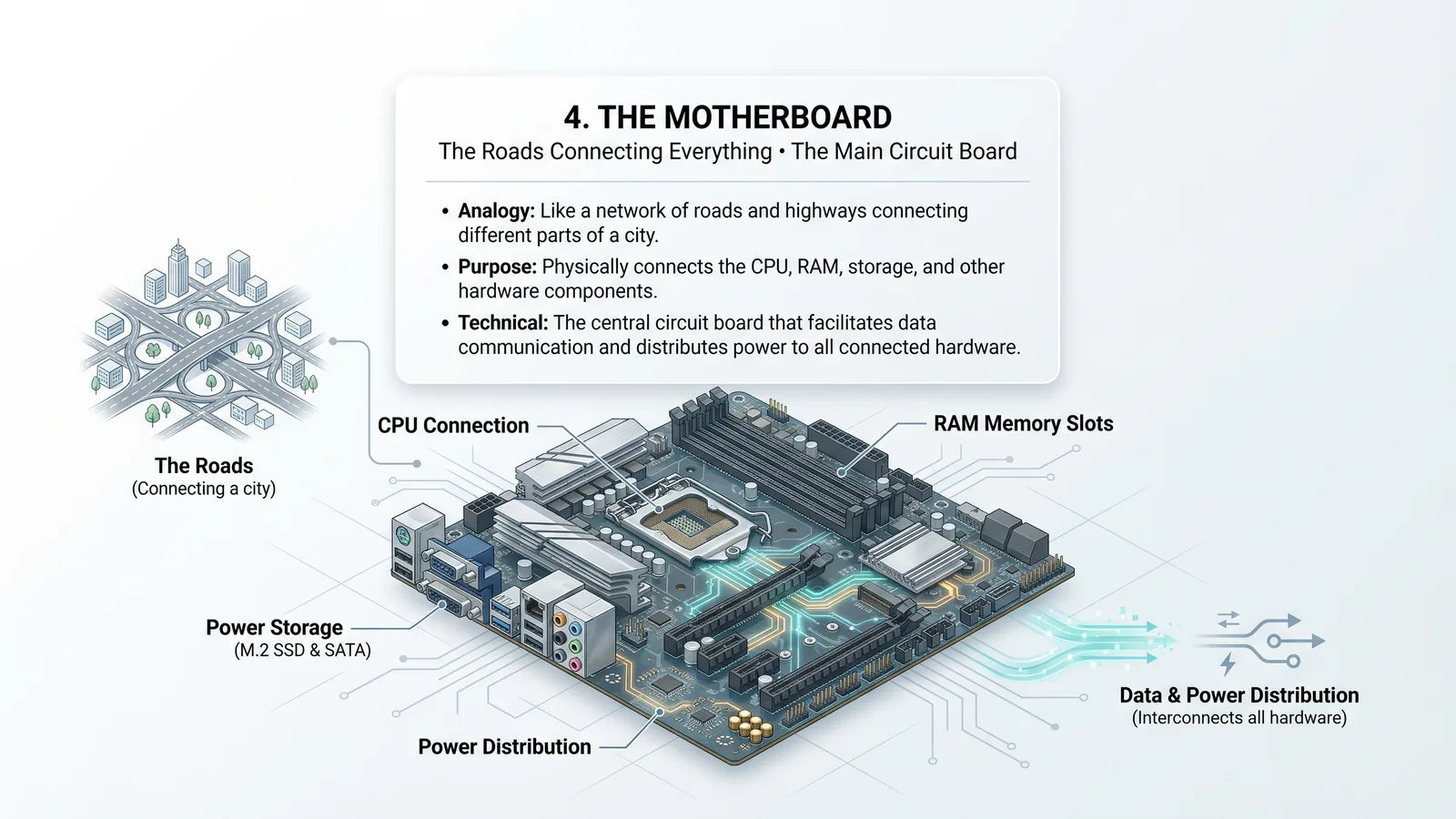
The motherboard is the main circuit board inside your computer. It connects the CPU, RAM, storage, and other hardware components.
Electrical pathways and connections allow these components to communicate with one another. The motherboard also distributes power supplied by the power supply to connected components.
Think of it as a network of roads connecting different parts of a city.
Without the motherboard and its connections, the components wouldn’t be able to work together as a computer.
5. The Operating System (OS): The Coordinator Running the Show
Your computer is doing many things at once: checking Wi-Fi, playing music, running your browser, and responding to your keyboard.
How does everything work together without applications constantly interfering with each other?
That’s the job of the Operating System (OS).
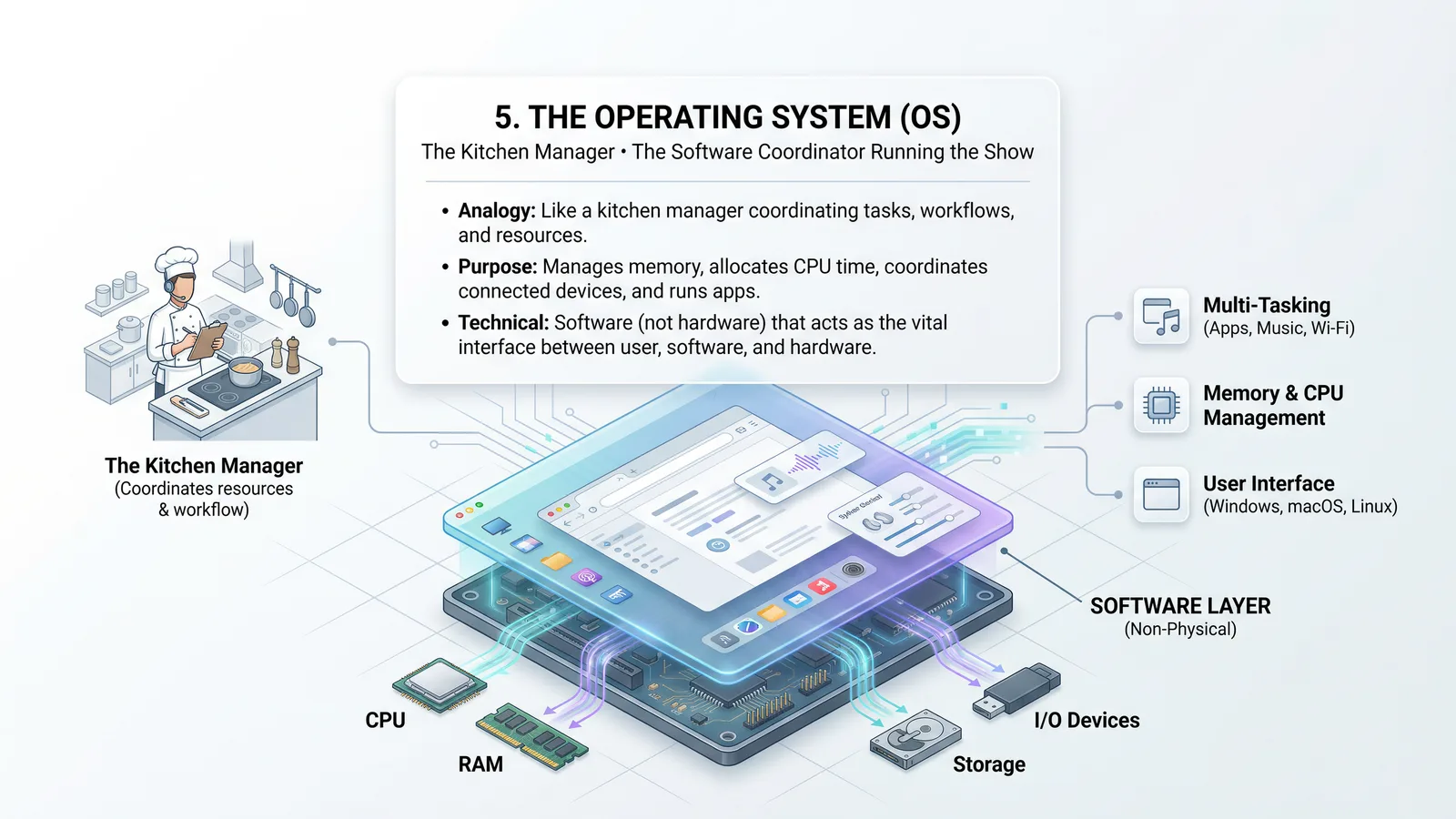
Examples include Windows, macOS, and Linux.
In our kitchen analogy, the operating system is the kitchen manager.
Unlike the other components, the operating system isn’t physical hardware. It’s software that coordinates the computer’s resources.
It manages which applications get time on the CPU, manages memory, handles connected devices, and provides the interface through which you interact with your computer.
You can interact with it in two common ways:
- GUI (Graphical User Interface): Clicking icons, opening folders, and interacting with visual elements.
- Terminal (Command Line): Typing text commands to tell the computer what to do
Both are ways of interacting with the operating system.
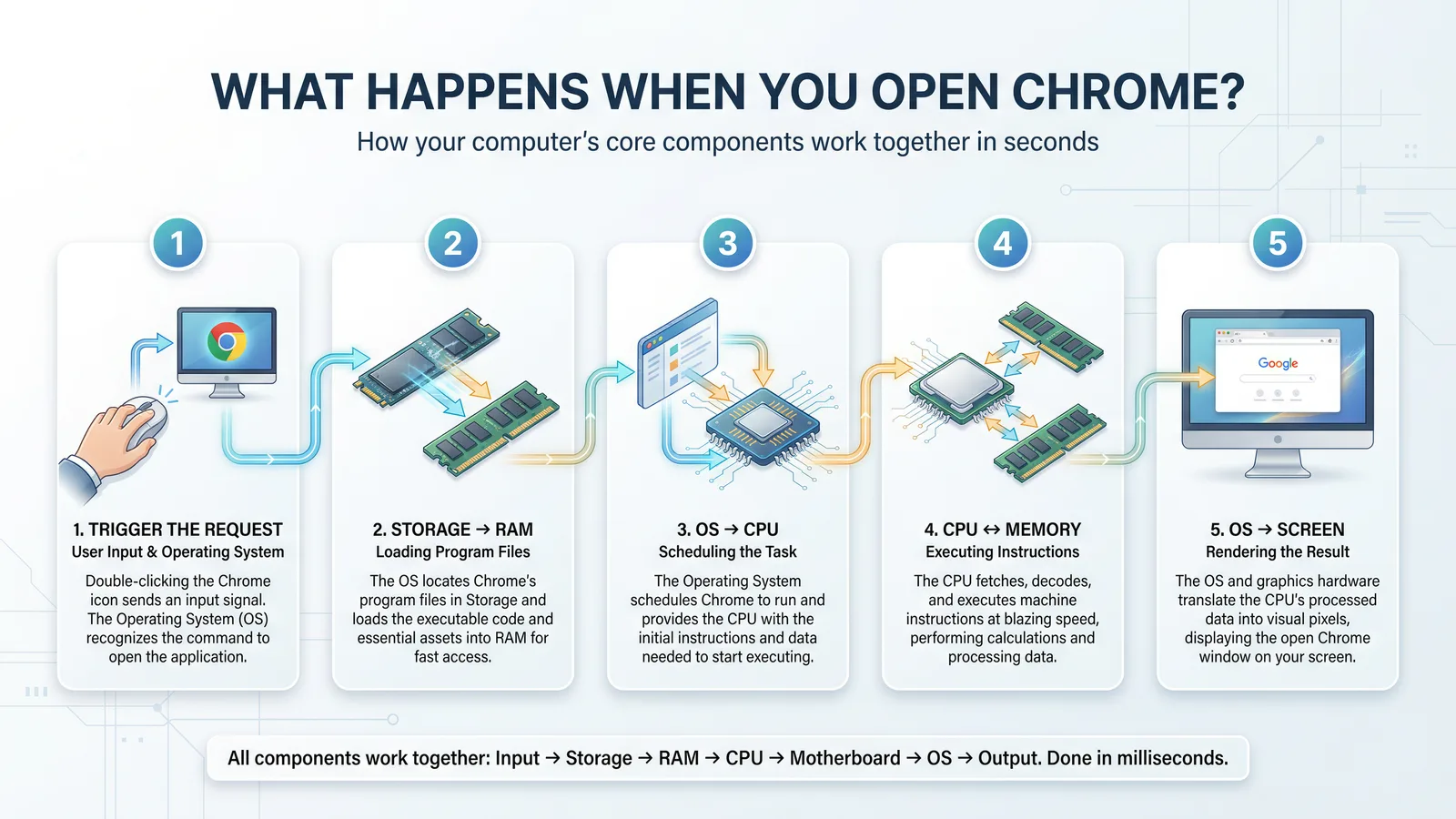
What Happens When You Open Chrome?
Now that you’ve met the five components, let’s see how they work together.
Imagine you double-click the Google Chrome icon on your desktop.
What happens behind the scenes?
- You trigger the request: Your mouse click sends an input signal that the operating system processes.
- Storage → RAM: The operating system locates Chrome’s program files in storage and loads the necessary parts into RAM.
- OS → CPU: The operating system schedules Chrome to run and gives the CPU the information it needs to execute its instructions.
- CPU ↔ Memory: The CPU retrieves instructions and data from its memory hierarchy, including its internal cache and RAM. It executes instructions and produces results.
- OS → Screen: The operating system and graphics hardware work together to display the Chrome window on your screen.
All five components contribute to making this happen, and this entire process happens incredibly quickly.
Conclusion
A computer might look like a simple machine from the outside, but millions of operations happen behind the scenes every time you use it.
The CPU executes instructions, RAM provides temporary working space, storage keeps your files and applications, the motherboard connects the hardware, and the operating system coordinates everything.
Each component has a different responsibility, but they all work together to turn your actions into results on the screen.
That’s how a computer works: hardware, software, and instructions working together.
What looks like a simple click on your screen is actually the result of millions of operations happening behind the scenes.
Continue Exploring
How Does a Computer Understand Everything We Show It?
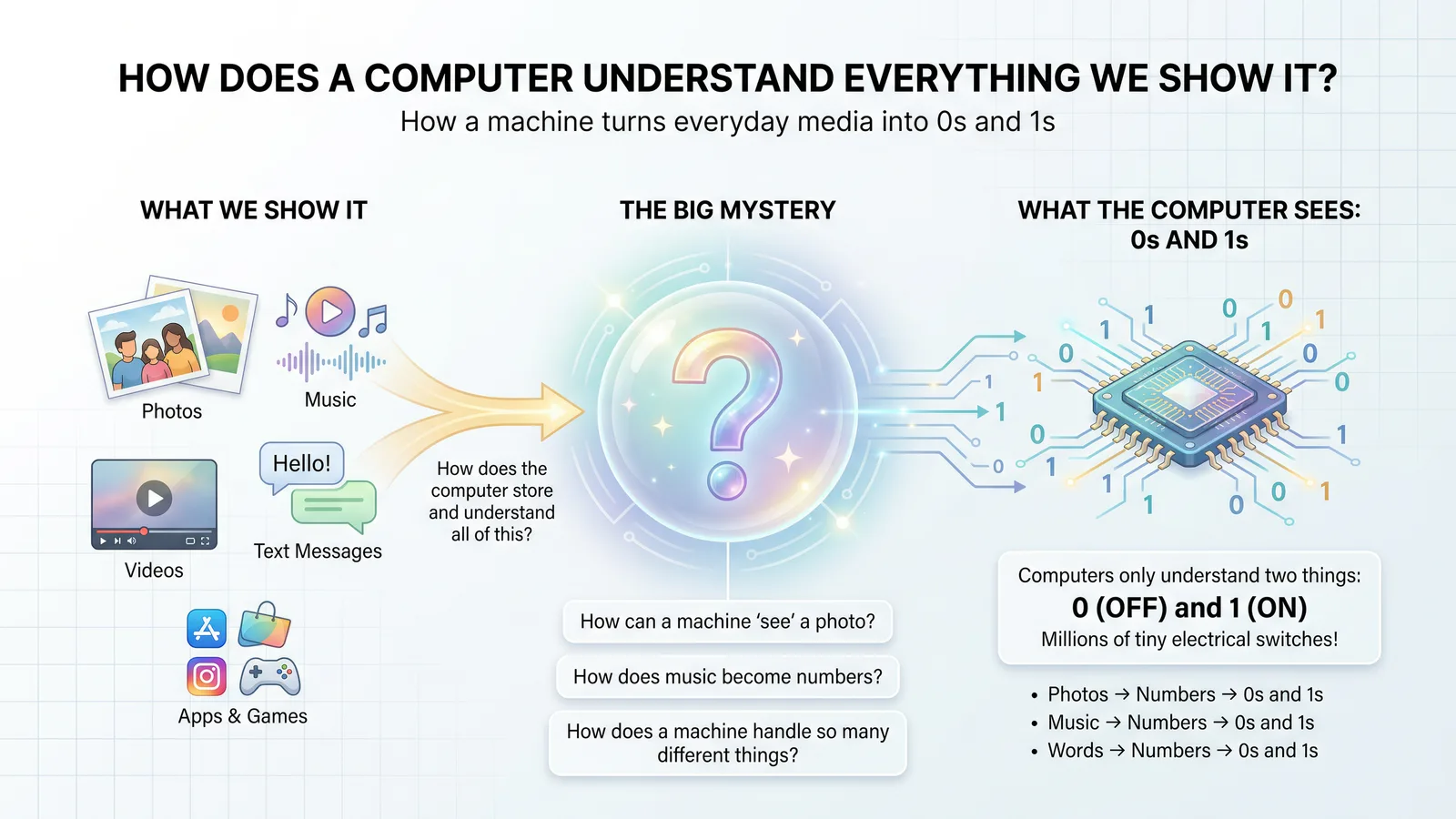
Your computer can display photographs, play your favorite songs, run applications, and show videos. But have you ever wondered how it actually makes all of this possible?
How does a computer turn a photograph into something it can store? How does it understand the instructions we give it? And how can a machine process so many different types of information?
The answer begins with a fundamental concept in computing: binary, the system of 0s and 1s.
Let’s explore what binary means, why computers use it, and how these two simple digits help represent everything from text messages to photographs and videos.
Coming next: How Do Computers Understand Information?